 Scrap
You browse.
Scrap remembers.
A browser that keeps what you copy and screenshot.

Browser
Feels familiar.
Does more.
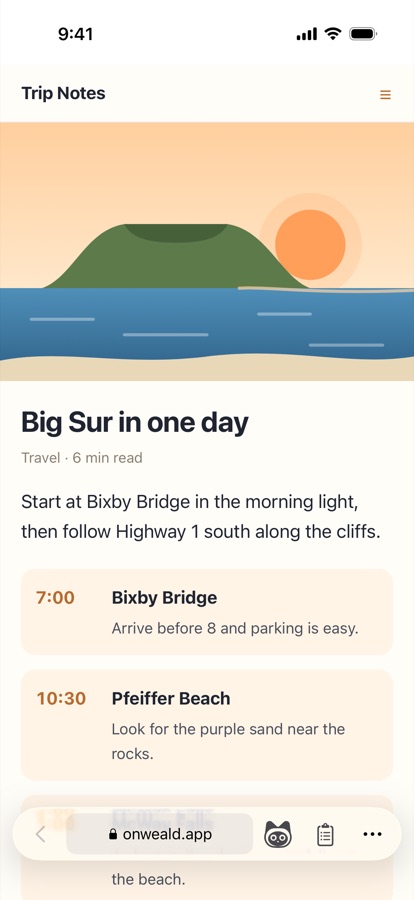
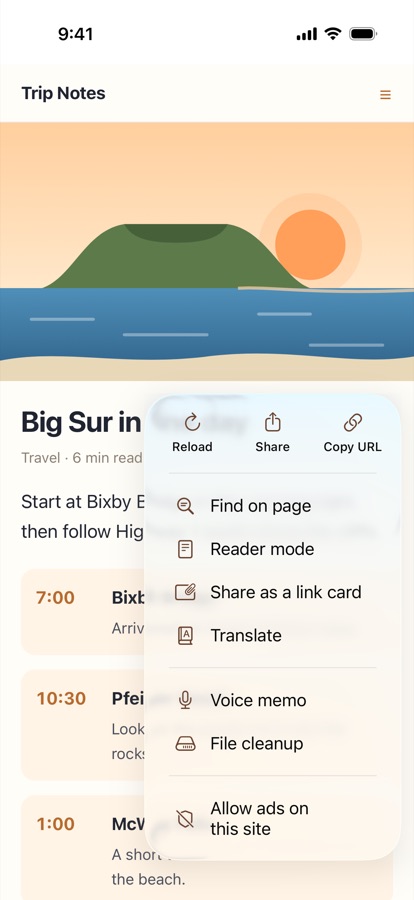
Type a search or an address and go. The controls sit in one bar at the bottom, and the tools are under ⋯.
- Find on page, reader mode, translation
- Ad blocking (you can turn it off per site)
- Share as a link card, copy the address
- Set it as your default browser on Android. iPhone support is coming
Saved automatically
Copy. Capture.
Keep.
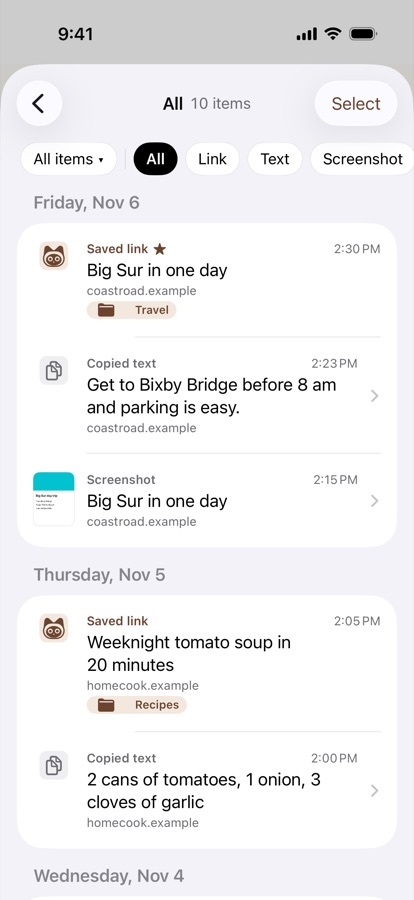
Text and links you copy in Scrap, and screenshots you take, are kept without an extra step. Tap the Mochi button to save a page you like to a folder.
- Copied text remembers the page it came from
- Save links, text and images from other apps with the share button
- Add screenshots you took in other apps, too
- Record voice memos along with a page
Organize
A place for everything.
A day to remember.
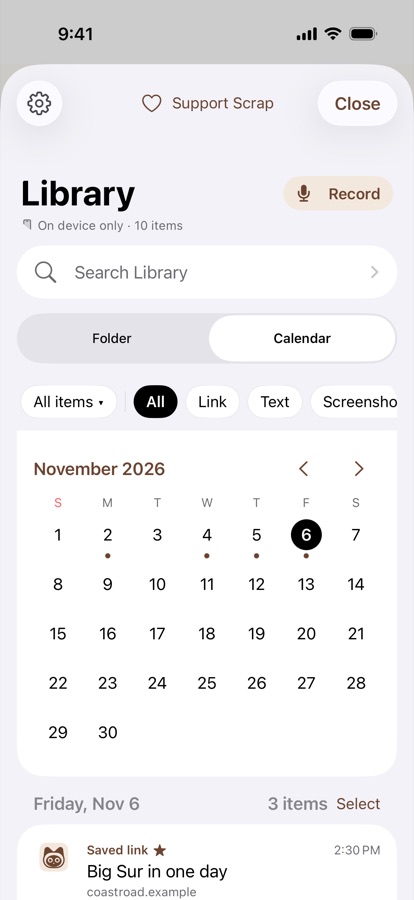
Make folders your way, like Travel, Recipes or To read. If you only remember when you saw it, the calendar shows everything from that day.
- Favorites and one-line notes
- Select several items and move them at once
- Crop screenshots and hide details
Search
Find that thought.
And everything around it.
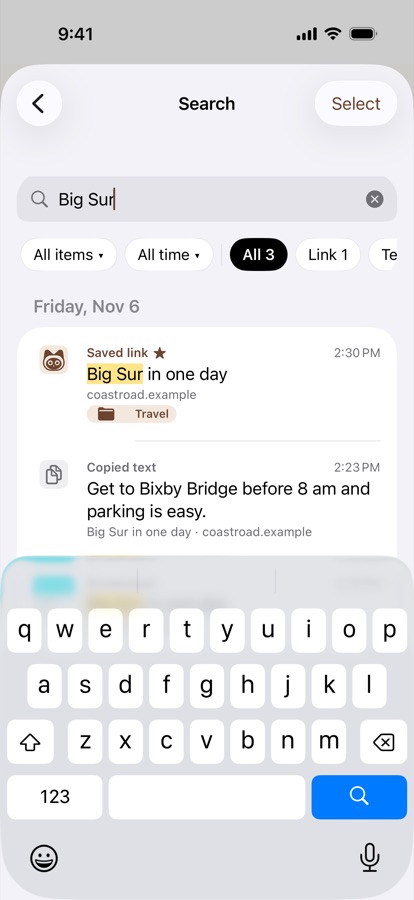
Search text and links, plus the words in your screenshots and what's pictured in them.
- Text in screenshots is recognized on your device
- Find what you said in voice memos (iOS 26 and Android 13 or later)
- Narrow down by type, folder or date
Everything stays on your device
No account
Start using it right away.
No server
We don't run a server, so we can't receive or see your items.
Processed on device
Text recognition and transcription happen on your device.
No ads or analytics
No usage statistics are sent.
Export a password-protected backup file and restore it on another device. See the privacy policy for details.
Questions
Is it free?
Yes, every feature is free. If you like it, you can leave a tip in Settings › Support Scrap.
Where are my items stored?
Only in the app's storage on your device. Deleting the app deletes them too, so back up in Settings › Backup, Export if you need to.
How do I move to a new phone?
Create a password-protected backup in Settings › Backup, Export, then restore it from the same screen on the new device. It works between iPhone and Android, too.
Can I add screenshots I took in other apps?
On iPhone, choose them with "Import screenshots from Photos" in your Library. On Android, turn on "Notify me of outside screenshots" in Settings, and you can pick new screenshots when you open Scrap. Available from version 1.0.1.
Can I make Scrap my default browser?
On Android, use Settings › Set as default browser in the app (from 1.0.1), or choose Scrap in your phone's Settings › Default apps › Browser app. iPhone support is coming.
Which devices support voice memo transcription?
Recording works on every device. Transcription needs iOS 26 or Android 13 or later.
Support
If something goes wrong or you have a question, email us. Including your device and app version (Settings › About) helps us help you faster.